
Introduction
Ever find yourself stuck in the endless clicking loop of CAD software, hunting through menus for that one command you need? I’ve been there-hours spent aligning, rotating, and adjusting objects, feeling like the software is running me instead of the other way around. That’s where CAD shortcuts come in. These little keystrokes aren’t just for speed-they’re your ticket to flow, precision, and sanity.
Whether you’re designing a sleek product prototype in Silicon Valley or sketching structural layouts in [Location], mastering shortcuts can save you time, reduce repetitive strain, and make your CAD sessions genuinely enjoyable. In this guide, we’ll explore essential shortcuts, share practical tips, and show you how to make them part of your everyday workflow-without feeling overwhelmed.
The Problem: Why CAD Without Shortcuts Feels Like a Grind
Picture this: you’re designing a detailed mechanical assembly, switching constantly between menus to rotate views, align parts, or activate a tool. Exhausting, right? A 2022 Autodesk survey found designers relying solely on menus spend up to 30% more time on repetitive tasks.
And it’s not just time-it’s the mental fatigue that drags your creativity down. I remember working on a drone propeller in college, spending nearly two hours just rotating the model because I didn’t know the rotate shortcut. By the end, my eyes were sore, my fingers ached, and I wondered: “There has to be a smarter way.”
That smarter way is, of course, shortcuts.
How-To: Mastering the Essential CAD Shortcuts
Here’s a practical, step-by-step approach to making shortcuts your best friend:
- Start with the Basics
Commands like Undo (Ctrl+Z), Copy (Ctrl+C), and Paste (Ctrl+V) are universal across most CAD programs. Even just mastering these will save you precious minutes each session. - Customize Your Hotkeys
Many CAD programs let you map commands to your preferred keys. I assigned “Align View to Top” to Alt+T. It’s a small tweak, but it eliminates extra clicks every time I switch planes. - Use Cheat Sheets
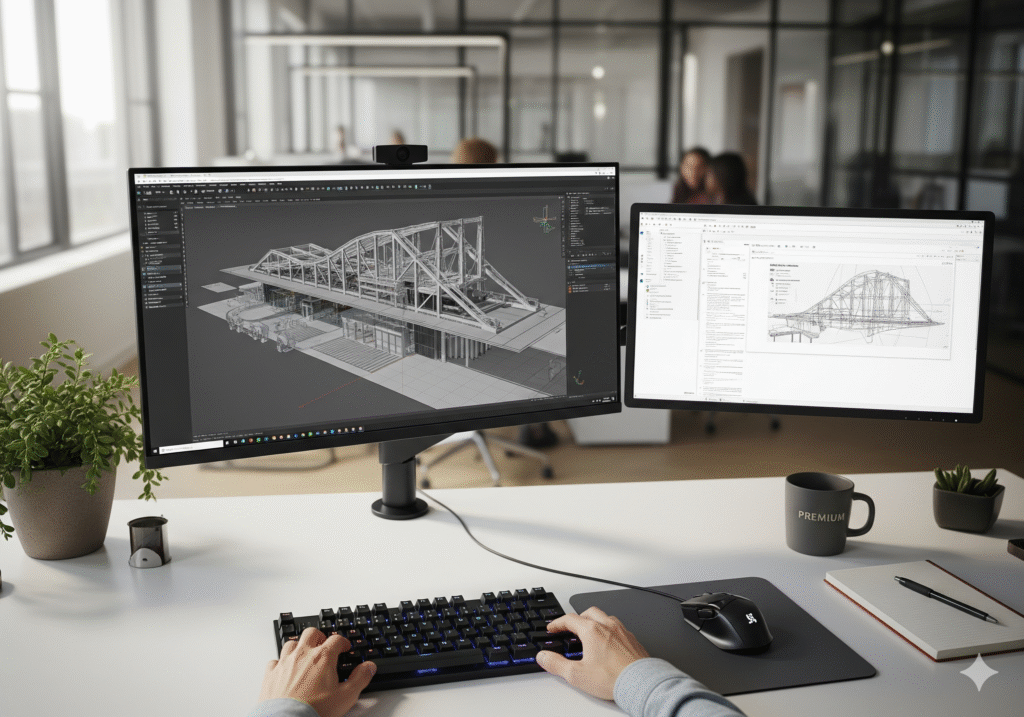
Keep a cheat sheet handy. I maintain a digital one on my second monitor, updating it whenever I discover a new shortcut. Over time, muscle memory kicks in. - Practice on Small Projects
Start small-draw a simple gear, a chair, or a box-while intentionally using only shortcuts. Repetition is key; soon, commands become instinctive. - Combine Shortcuts with Toolbars
Many CAD programs let you trigger tools with a combination of keystrokes and clicks. This hybrid approach can supercharge your workflow.
By integrating these steps, you’ll notice faster drafting, smoother navigation, and far less frustration during complex projects.
Comparison: Shortcuts vs. Menu Navigation
Menus might feel intuitive, especially for beginners, but they come with hidden costs. Here’s a quick breakdown:
| Feature | Menus | Shortcuts |
| Speed | Slow, multiple clicks | Fast, single keystrokes |
| Ergonomics | More hand movement, fatigue | Minimal strain |
| Flow State | Interrupted by navigation | Continuous, creative workflow |
| Error Potential | Higher misclick risk | Lower when familiar |
| Learning Curve | Minimal, easy start | Requires practice, but lasting |
Take it from my colleague in Texas: after adopting a custom shortcut workflow, he cut project drafting time by 40%. That’s hours saved every week-time he could spend iterating ideas instead of wrestling with menus.
Benefits & Real-World Use Cases
Why bother learning shortcuts? Beyond speed, the advantages are tangible:
- Time-Saving: On large assemblies, shortcuts can shave hours off a project.
- Accuracy: Reduces misclicks and accidental tool selections.
- Focus: Keeps your mind on design rather than software navigation.
- Ergonomics: Fewer repetitive movements reduce strain injuries.
- Professional Edge: Companies value designers who can work efficiently and fluidly.
Whether drafting skyscrapers in AutoCAD, modeling mechanical parts in SolidWorks, or iterating prototypes in Fusion 360, shortcuts let you spend less time clicking and more time creating.
Expert Insights
John McLaren, a CAD instructor at [Renowned Design Institute], shares:
“Shortcuts aren’t just about speed-they’re about enabling designers to enter a flow state. Once your hands instinctively know where to go, your mind can focus entirely on solving design challenges.”
Supporting this, the Autodesk Efficiency Report 2023 found that engineers using shortcuts completed projects 35% faster and made fewer errors.
FAQs
Q1: How long does it take to get comfortable with shortcuts?
Most users notice improvement within 2–4 weeks of daily practice, especially if integrating shortcuts into small projects.
Q2: Are CAD shortcuts the same across software?
Basic commands like Undo or Copy are universal, but many shortcuts vary between AutoCAD, SolidWorks, and Fusion 360. Custom hotkeys are key.
Q3: Can shortcuts really save a lot of time?
Yes. On complex projects, shortcuts can save hours each week, especially with repetitive tasks like object alignment or view rotation.
Q4: How do I avoid forgetting shortcuts?
Keep cheat sheets, sticky notes, or digital reminders. Regular practice cements them into muscle memory.
Q5: Are there ergonomic benefits?
Definitely. Shortcuts reduce repetitive mouse movements, lowering the risk of strain injuries like tendonitis or carpal tunnel syndrome.
Q6: Should beginners focus on shortcuts immediately?
Yes, but start small. Learn the basics first, then gradually add advanced shortcuts as comfort grows.
Conclusion
Mastering CAD shortcuts isn’t just a productivity hack-it’s a mindset shift. Suddenly, drafting feels fluid, precise, and even enjoyable. By learning, customizing, and practicing shortcuts, you’ll save time, reduce mistakes, and protect your hands from strain.
Whether you’re modeling skyscrapers in [Location], designing mechanical parts, or iterating product prototypes, shortcuts empower you to focus on what truly matters: creating with confidence and speed. Start small, be consistent, and soon, life on CAD will feel less like a grind and more like a superpower.