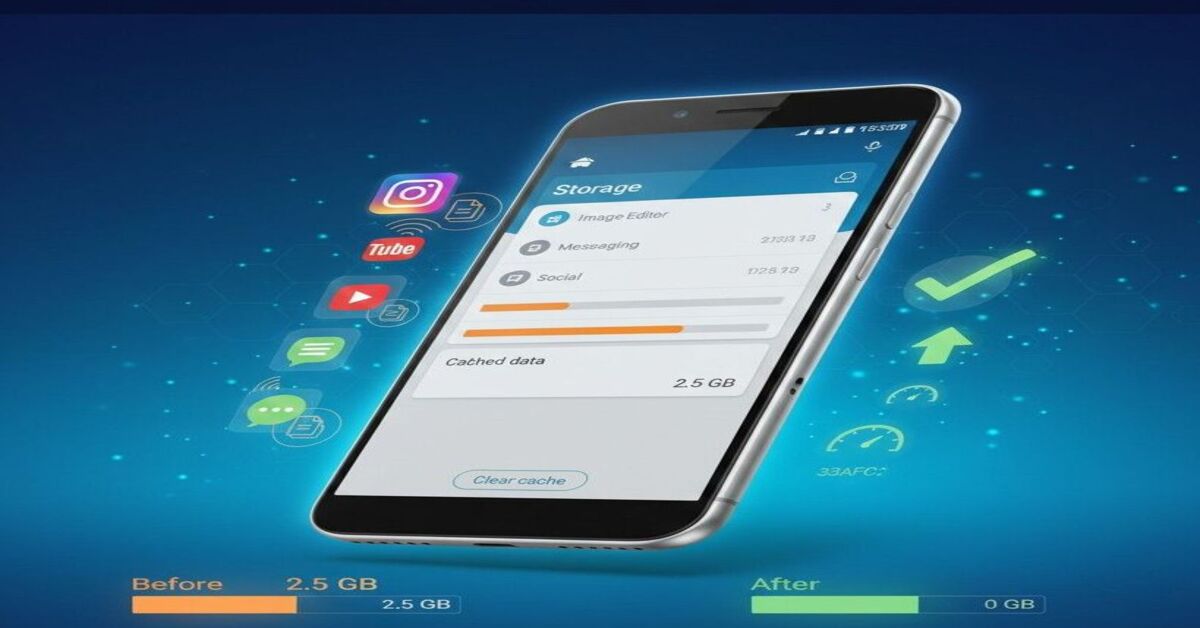
How to Clear Cache on Android (2025 Updated Guide for Faster Performance)
Clear App Cache • Free Up Storage • Fix Lag • Boost Speed
If your Android phone suddenly feels sluggish, apps are freezing, or storage keeps running out, there’s a high chance your app cache is clogging up your system. Cached data helps apps load faster—but when it builds up, it can slow down your phone, cause glitches, or create “insufficient storage” errors.
The good news? Clearing cache on Android is quick, safe, and often fixes performance issues instantly.
This 2025 guide shows you exactly how to clear cache on Android, whether you’re using Samsung, Xiaomi, OnePlus, Google Pixel, Realme, Motorola, or any other Android smartphone.
What Is Cache on Android? (Explained Simply)
Cache = temporary files apps store to load faster.
Examples:
- YouTube stores thumbnails
- Instagram stores images and reels
- Chrome stores website files
- Spotify stores song snippets
- WhatsApp stores media previews
Over time, this can grow from MBs to several GBs.
Why Clearing Cache Helps
Clearing cache can:
- Free up storage instantly
- Fix app crashes
- Get rid of corrupted data
- Improve speed and responsiveness
- Solve “phone storage full” issues
- Fix app loading problems
Important:
Clearing cache does NOT delete your personal data, chats, images, or app settings.
How to Clear Cache on Android (Any Phone – 2025 Method)
This method works on most Android devices (Samsung, Pixel, Xiaomi, OnePlus, Realme, Oppo, Vivo, Motorola, Infinix, Tecno).
Step-by-step:
1. Open Settings
Tap the Settings app on your Android phone.
2. Go to “Apps” or “App Management”
In some phones this is called:
- Apps
- App Info
- Applications
- Manage Apps
3. Select the App You Want to Clear Cache For
Examples of apps that store a LOT of cache:
- Chrome
- TikTok
- YouTube
- Snapchat
- Spotify
4. Tap “Storage” or “Storage & Cache”
5. Tap “Clear Cache”
The button is usually blue or gray and sits below “Clear Storage.”
✔ Safe
✔ Instant
✔ No data loss
How to Clear Cache on Samsung Phones (2025 Update)
Samsung uses One UI, so the steps are slightly different.
Samsung Cache Clearing Steps:
- Open Settings
- Tap Apps
- Select the app
- Tap Storage
- Tap Clear Cache
How to Clear System Cache on Android (Without Losing Data)
You cannot clear system-level cache through settings anymore (removed after Android 12), but you can do it through recovery mode.
Steps to Clear System Cache (Safe Cache Partition Wipe):
- Turn off your phone
- Hold Power + Volume Up until recovery mode appears
- Use the volume keys to select Wipe Cache Partition
- Press the power button to confirm
- Select Reboot System Now
This:
- Does NOT delete photos
- Does NOT delete apps
- Only clears temporary system files
Useful when:
- Phone is lagging
- Battery draining fast
- Apps behaving weirdly
How to Clear Cache for All Apps at Once (Works on Most Phones)
Android removed the “Clear All Cache” button after version 8, but some manufacturers still keep this option.
Try this:
- Open Settings
- Search for “Storage”
- Tap Device Care / Storage
- Tap Clean Up or Junk Files
Supported on:
- Samsung
- Xiaomi
- Realme
- Oppo
- Vivo
- OnePlus (older versions)
Clear Cache on Chrome (One of the Biggest Cache Users)
- Open Chrome
- Tap three dots (⋮)
- Tap History
- Tap Clear Browsing Data
- Select Cached images and files
- Tap Clear Data
Does Clearing Cache Delete Anything Important?
No, clearing cache does not delete:
- Photos
- Chats
- Messages
- Login details
- App data
- Game progress
You can clear cache daily without issues.
When Should You Clear Cache? (Best Practice)
Clear cache when:
- Phone is slow
- App crashes
- Instagram/YouTube takes too long to load
- Storage is full
- Browser feels laggy
- Apps freeze or glitch
- After major Android updates
Do NOT Tap “Clear Storage” or “Clear Data” (Unless Necessary)
This will:
- Log you out
- Delete preferences
- Reset app completely
- Remove downloaded offline files
Always tap Clear Cache, NOT Clear Data.
Expert Tip (2025): The Apps With the Heaviest Cache
Average cache sizes:
| App | Cache Build-up (Approx.) |
| 500MB – 2GB | |
| Chrome | 200MB – 1.5GB |
| 300MB – 1GB | |
| TikTok | 500MB – 1.2GB |
| YouTube | 200MB – 600MB |
| 200MB – 500MB |
Clearing these alone can free 2–5GB.
Advanced Tip: Use Built-in Cleaner Apps
Depending on your phone brand:
Samsung → Device Care
Xiaomi / Redmi / Poco → Cleaner
Realme / Oppo / Vivo → Phone Manager
OnePlus → Storage Cleaner
These perform:
- Cache cleanup
- Temporary file removal
- Junk file optimization
How to Clear Cache in Gboard (Keyboard)
If your keyboard lags:
- Settings
- Apps
- Gboard
- Storage
- Clear Cache
How to Clear App Cache Automatically
You can automate cache removal using:
- Files by Google (recommended)
- CCleaner for Android
- Phone Master
Files by Google is the safest and official Google app.
FAQs (AEO + SGE Optimized)
1. Is clearing cache safe on Android?
Yes. Clearing cache is 100% safe and does not delete personal data.
2. Will clearing cache make apps faster?
Often yes — especially for apps that load large files (Instagram, Chrome, YouTube, Facebook).
3. How often should I clear cache?
Once every 1–2 weeks is ideal.
4. What happens if I never clear cache?
- Phone gets slower
- Apps lag
- Storage fills up
- Glitches are more common
5. Does clearing system cache delete anything?
No, it only clears temporary system files.
