
Introduction
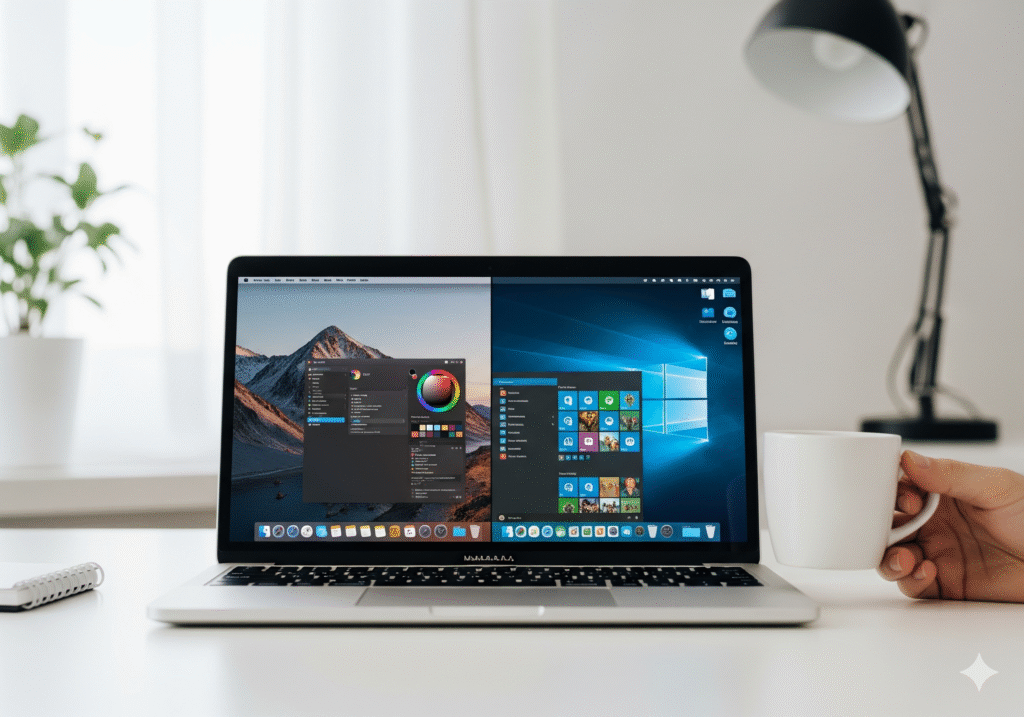
Imagine this: you’re sipping your morning coffee, opening your MacBook, and effortlessly switching between macOS for creative work and Windows 10 for your favorite games or business software. Sounds like a dream, right? For many of us, managing two separate computers—one Mac, one Windows—has always been a juggling act. But what if a single machine could give you the best of both worlds? That’s the magic of running macOS and Windows 10 on the same computer, a setup known as dual-booting.
Whether you’re a designer who loves Final Cut Pro, a gamer craving Windows-only titles, or a developer testing cross-platform apps, dual-booting lets you maximize productivity without doubling your hardware costs. Let’s dive into how it works and why it might be your next power move.
Why Dual-Boot Exists: The Challenge of Choosing an OS
I remember helping a friend, a freelance designer, who faced a daily dilemma: she needed macOS for Final Cut Pro projects but relied on Windows 10 for specific Photoshop plugins unavailable on Mac. She told me, “It feels like I’m living in two worlds at once.”
This is a common issue. macOS offers reliability, a polished interface, and software like Logic Pro. Windows 10 dominates gaming, enterprise applications, and certain development tools. Choosing one OS usually meant giving up the strengths of the other—but dual-booting solves this by allowing both systems to live harmoniously on one machine.
Think of it as owning a convertible car: sometimes you need the roof up (macOS), sometimes down (Windows)—but you don’t want two cars cluttering your garage.
How to Set Up macOS and Windows 10 on the Same Computer
Step 1: Check Your Hardware
Before jumping in, confirm your system’s compatibility. Intel-based Macs handle dual-booting with Boot Camp Assistant, Apple’s official tool. For those daring enough to try Hackintosh setups (macOS on a non-Apple PC), compatibility checks are crucial—CPU, GPU, and motherboard matter.
Step 2: Back Up Everything
Partitioning your drive is like renovating a house while living in it—you want insurance. Use Time Machine for macOS and Windows Backup or an external drive to safeguard your files. One wrong step and you could lose precious data.
Step 3: Partition Your Hard Drive
On a Mac, open Disk Utility and create a new partition for Windows. Boot Camp will guide you through this process. Hackintosh users might rely on tools like Clover Bootloader to manage partitions safely.
Step 4: Install the Secondary OS
- Windows on Mac: Boot Camp creates a USB installer, and you’ll be guided through Windows setup.
- macOS on Windows PCs: Hackintosh guides, like tonymacx86, provide step-by-step instructions—but expect some tinkering.
Step 5: Configure the Bootloader
Bootloaders allow you to choose your operating system at startup. Macs use the native boot menu (hold Option while starting up). Hackintosh users often rely on Clover or OpenCore.
Step 6: Install Drivers and Updates
After installation, update all drivers. Windows on a Mac requires Boot Camp drivers, while Hackintosh users may need additional kexts to ensure full hardware functionality.
Dual-Boot vs. Virtualization: Which One’s Right?
Virtualization software like Parallels Desktop or VMware Fusion allows you to run one OS inside the other. The convenience is undeniable: no rebooting needed. But there’s a trade-off—performance. Graphic-intensive tasks like video editing or gaming may lag.
Dual-booting offers native performance. Imagine exporting a 4K video in Final Cut Pro on macOS while keeping Windows 10 ready for Excel or your favorite game—it’s smooth, fast, and reliable.
In short:
- Dual-Boot = maximum performance, requires reboot.
- Virtualization = convenience, slightly slower, easier switching.
Real-Life Benefits and Use Cases
1. Professional Flexibility
For creative professionals, dual-booting is a game-changer. You can run macOS-exclusive apps like Logic Pro, then switch to Windows 10 for plugins or industry-specific software.
2. Gaming Meets Productivity
Windows 10 dominates gaming, supporting the latest titles with better graphics. Switch to Windows when you want to game, then return to macOS for your work projects. It’s like having the best office and the best arcade in the same room.
3. Software Testing and Development
Developers testing cross-platform applications benefit enormously. You can check functionality on both macOS and Windows without juggling multiple machines. This workflow saves time and reduces frustration.
4. Cost Savings
Instead of buying two computers, a dual-boot setup leverages your existing hardware. It’s an investment in efficiency that doesn’t break the bank.
Expert Insight
Dr. Mark Gurman, a respected tech analyst, emphasizes:
“For power users, dual-booting remains one of the most efficient ways to leverage both operating systems’ strengths. Virtualization is great for convenience, but native dual-boot delivers unmatched performance.”
FAQs
Q1: Can I dual-boot on a MacBook Air?
Yes, with Intel-based Macs using Boot Camp. M1 Macs do not support Boot Camp; virtualization is the alternative.
Q2: Will dual-booting slow my computer?
Not significantly. Each OS runs natively, so performance remains strong. Disk space allocation is the main consideration.
Q3: Do I need two separate drives?
No. A single drive can host both OSs via partitioning. Dual drives can enhance performance but are optional.
Q4: Is dual-booting safe?
Yes, if you back up data and follow instructions carefully. Partitioning errors can risk data loss.
Q5: Can I use virtualization instead?
Absolutely. Virtualization allows running one OS inside another, but intensive tasks may see slower performance.
Q6: Which is better: dual-boot or virtualization?
Dual-boot offers full performance; virtualization is convenient. Many users combine both depending on workflow needs.
Conclusion
Running macOS and Windows 10 on the same computer isn’t just a technical trick—it’s a practical, cost-effective way to expand your computing power. For creatives, gamers, developers, and multitaskers, dual-booting gives you the freedom to use the right tool for every task. Back up your data, follow setup steps carefully, and enjoy the best of both worlds—all on a single machine.
Why choose between macOS and Windows when you can have both? With dual-booting, your computer isn’t just a device—it’s a powerhouse of possibility.