How to Set Up Voicemail on Android — 2025 Updated Guide
You just got a new Android and want to make sure you never miss a message. Maybe you’ve asked yourself: “How do I even set up voicemail on Android?” Don’t worry — you’re not alone. Between different phone models, carriers, and OS versions, it can feel confusing.
In this guide, you’ll get step-by-step instructions, tips to avoid common pitfalls, and real-world troubleshooting that most tutorials skip. Whether you use a Samsung, Pixel, OnePlus, or any Android phone — this works.
What is Android Voicemail (Traditional and Visual)?
Voicemail on Android refers to the service that lets callers leave you audio messages when you don’t answer. It typically works two ways:
- Traditional voicemail — you (or the caller) dial into your voicemail inbox and listen to messages.
- Visual voicemail — messages appear as a list in an app (with caller number, time, duration), so you can tap to listen, delete or save — just like modern voicemails in iOS or Google Voice.
Why Setting Up Voicemail Matters (and Why Many Skip It)
- You might already think: “I just use WhatsApp” — but not everyone uses data/messages. Calls from unknown numbers, business contacts, or OTPs often land straight to voicemail. Without setup, you might miss them.
- Many carriers don’t auto-configure it when you buy a SIM or switch phones. According to a 2025 summary by Android Authority, a lot of users skip voicemail setup simply because they never pressed and held “1” after activation.
- Visual voicemail adds convenience: see who left the message, when, how long — no need to sit through all messages one by one.
In short: voicemail isn’t flashy, but if you care about missed calls — it’s essential.
Step-by-Step: How to Set Up Voicemail on Android (Any Phone)
Quick Answer
Open the Phone app → go to keypad → press and hold 1 → follow prompts to create PIN & greeting → you’re done.
Here’s the detailed workflow:
- Open your Phone (dialer) app.
- Tap the keypad icon (if not already visible).
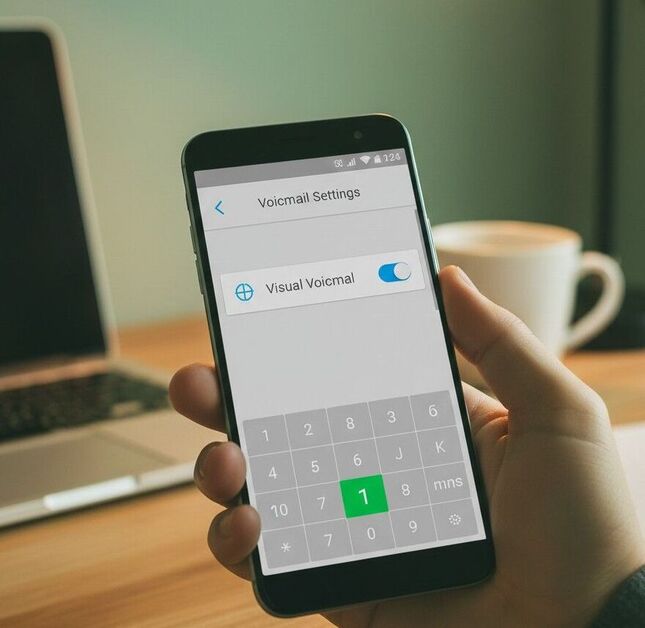
- Press and hold 1 (or tap the voicemail envelope icon if available). This usually dials your voicemail inbox automatically.
- If voicemail isn’t previously configured, you’ll hear a prompt: “Voicemail not set up — please set up now.” Follow the audio instructions. That typically involves: setting a PIN/password, then recording a greeting (your name or custom message).
- Hang up once setup is complete.
- To test: press-and-hold 1 again — if you hear the greeting or PIN prompt, voicemail is ready.
Pro tip: If pressing 1 does nothing, you might need to enter your carrier’s voicemail number manually (see below).
Alternative Setup (Manual Voicemail Number / Visual Voicemail)
If the auto-dial method fails or you want better control:
- Open Phone app → tap ⋮ (menu) → Settings → Voicemail → Advanced / Setup → Voicemail number → Enter the number provided by your carrier. (PC Guide)
- Some carriers require a manual number (e.g. *86, *98, or a 10-digit number). (TechBloat)
- If your phone supports Visual Voicemail, you may see a separate “Visual Voicemail” app, or it may be integrated in the Phone app. Enable it and allow necessary permissions. (Android Authority)
- Once enabled, you get a neat list of all voice messages — caller ID, timestamp, message length — no dialing required.
Common Problems & How to Solve Them (Often Skipped by Other Guides)
| Problem | What Happens / Why | What You Can Try |
| Press-and-hold “1” does nothing / says “Voicemail not set up” | Carrier didn’t auto-configure voicemail | Manually enter voicemail number in Settings → Voicemail number |
| Visual voicemail fails repeatedly / disappears | Carrier or custom Android ROM incompatible, or voicemail number missing | Try clearing Phone app cache/data, reboot, re-add voicemail number (AirDroid) |
| Voicemail works, but you don’t get notifications or playbacks | Data/Wi-Fi calling or network settings interfering | Turn off Wi-Fi calling (if active) & ensure cellular data or network signal is stable (some carriers restrict voicemail over Wi-Fi) — community workaround shared on r/AndroidQuestions (Reddit) |
| Dual-SIM users can’t get voicemails for both lines | Default voicemail tied to one SIM | Switch dialer to the second SIM and call voicemail separately, or use Visual Voicemail that supports multiple lines (if carrier allows) (Reddit) |
Real user story: one Redditor wrote (2023):
“Ok I promise I searched three or four times… holding 1 just played ‘person you are calling has not set up voicemail.’ … Found the problem after talking to customer service… Make sure Wi-Fi and Wi-Fi calling are disabled — you can’t access voicemail while these are on.”
So yes — sometimes the fix is as simple as toggling off Wi-Fi calling.
When to Use Visual Voicemail vs Traditional Dial-In Voicemail
| Feature | Traditional Voicemail | Visual Voicemail (Android) |
| Access method | Dial your voicemail by holding 1 or calling number | Open voicemail tab in Phone app or Visual Voicemail app |
| Usability | Old-school: listen sequentially | Modern: see list, select messages, delete/save easily |
| Message info | None until listened | Caller ID, timestamp, length visible |
| Data requirement | No data needed (call only) | Requires mobile data / working carrier + support (SimplyMac) |
| Best for | Simple use, limited data, backup messages | Frequent callers, multitasking, quick scanning |
My take: If your carrier supports it — go for Visual Voicemail. It feels much more intuitive. Traditional voicemail still has its place (e.g. weak data, dual-SIM, or SIM-swap situations).
Bonus: Advanced Tips, Edge Cases & Pro Tips (2025)
- Clear Phone App cache/data — Sometimes Visual Voicemail breaks after updates; clearing cache/data can kickstart it again (it won’t delete messages stored on carrier servers).
- On dual-SIM phones, Android may default voicemail to only one SIM. If you switch SIMs, remember to switch voicemail or call both voicemails separately.
- Carrier Voicemail Number — Not all carriers automatically configure voicemail. Some require manual setup using code like *86 (in US) or a specific number. Ask your carrier if not sure.
- Wi-Fi Calling / VoLTE interference — As one Reddit user discovered: Wi-Fi calling can block voicemail access. Try turning off Wi-Fi calling temporarily.
- Back up important voicemails — Visual voicemail messages are often stored on carrier servers. If you frequently switch phones/SIMs, record or save important voicemails manually.
Real-Life Use Cases: Who Should Make Sure Voicemail Works
- Frequent travelers / dual-SIM users — You might miss calls while abroad; voicemail ensures you don’t lose important messages.
- Business owners / freelancers — For clients calling outside office hours — voicemail acts like after-hours answering.
- Users in regions with intermittent internet or patchy data — Traditional voicemail doesn’t need data; works even on 2G calls.
- People switching numbers / porting SIMs — Voicemail is often lost or needs re-activation when porting — better to set up manually.
Frequently Asked Questions (PAA Style)
Q: Can I set up voicemail on Android without calling my own number?
Yes — you can open the Phone app → Settings → Voicemail → Advanced Settings → enter the voicemail number provided by your carrier. That registers voicemail without dialing yourself.
Q: What if pressing and holding 1 doesn’t work?
It could mean voicemail isn’t auto-configured. Manually entering your voicemail access number or contacting your carrier works.
Q: Does Visual Voicemail cost extra?
Sometimes — depends on carrier. Many include it free; others may treat it as a special service. Check your plan.
Q: Can I retrieve voicemails from another phone?
Yes — call your own number from any phone, press the “#” or appropriate key when prompted, then enter voicemail PIN/password to access messages.
Q: Will switching phones or SIMs delete my voicemail messages?
Traditional voicemail is stored on carrier servers, so messages usually stay. But Visual Voicemail app data may be device-specific — best to back up important messages manually.
Q: Why do I sometimes not get voicemail notifications although it’s set up?
Possible reasons: Wi-Fi calling or VPN interfering, data connectivity issues, or app cache problems. Try toggling Wi-Fi calling off, clearing cache/data of Phone/Voicemail app, ensuring mobile data or signal is active.
My Take (What Many Guides Miss)
Here’s the kicker: voicemail setup works — but only if you treat it like a feature, not an afterthought.
Most online guides assume everything will just work automatically. Reality? Depends on your carrier, SIM porting history, Android version, even Wi-Fi calling settings.
From personal experience — I once switched to a new SIM, held 1 to test voicemail… got silence. After 15 minutes of frustration, I entered the voicemail number manually. Within 30 seconds — it worked. (Yes, that annoyed me.)
If you want peace of mind, treat voicemail as essential. Set it up the right way now.
What to Do Right After Reading This
- Open your Android phone’s dialer — press and hold 1 — and see what happens
- If nothing: go to Settings → Phone → Voicemail → add your carrier’s voicemail number manually
- If Visual Voicemail is available: enable it for a cleaner, modern view of all messages
Do this once now — and forget worrying about missed calls forever.
